- SynthHead
- Electronics
- | Docs
MC1210F User Manual
Introduction
Thank you for buying this SynthHead Midi Controller. This short setup and installation guide will help you to bring your new device up and running.
As we developed this product we intented to make the initial setup very easy so that you may start trying it out very fast.
In case you may find any complications here please do not hesitate to contact us via email at support@synthhead.de. We will try to help you as soon as we can.
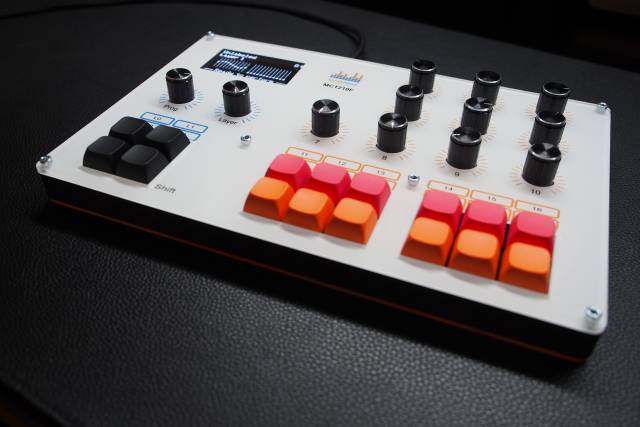
Please note: This guide describes your midi controller device itself. It does not include any description on how to use it on a PC.
Table of Contents
Installation Requirements
You should have the following parts availlable in order to get started:
- Your SynthHead Midi Controller
- The USB cable provided with your product
- A PC running Microsoft Windows(TM) or any up-to-date Linux System
Connecting Hardware
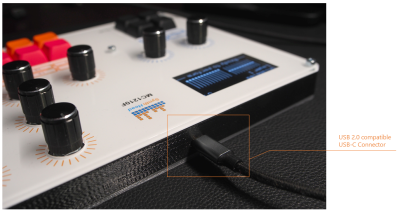
Connecting your SynthHead midi controller requires your device, a USB-C to USB-C / USB-A cable and a PC running Microsoft Windows (TM) or Linux.
- Plug the USB-C end of your USB cable into the USB-C connection port at the upper side of your midi controller. You can find it near the display
- Ensure your PC is up and running and you are logged into your account
- Plug the other end of the USB cable into a free USB slot of your PC
→ Your SynthHead device will now start immediately and the PC should find and install required drivers directly. If you start any MIDI-capable application afterwards, it shall be able to find.
Note: SynthHead USB devices use standard USB MIDI drivers, should not require any addtional drivers.
Control Elements
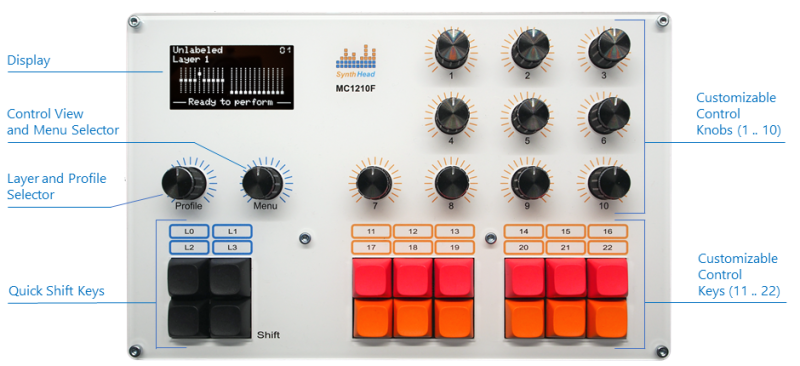
This controller provides three types of controls:
- Knobs .. these can be pressed to select a function as well as turned left/right to choose an option or change a value
- Buttons .. these can be pressed in order to trigger some dedicated system function or custom control
- Display .. gives access to multiple views depending of the controlling context you are currently in
The following descriptions always relate to user actions “Press”, “Turn” or “View”.
Display
Within the display you have access to the following views:
| View | Description |
|---|---|
| Overview Main Screen | Shows the current values of all controls. If some value changed, its last value will be displayed below the graphics equalizer view. |
| Details Main Screen | Provides a view onto all details of a sinlge view. This includes its value, its minimum and maximum value as well as the related MIDI settings defined. |
| Profiles Selection | The Profiles selection allows to flip through and select a new profile to be applied to all controlls. |
| Settings Menu | Gives access to all available menu settings. |
Note: For more details please see the User Screen Guide.
Control View and Menu Selector
From the main screen you reach the following functions:
| Action | Description |
|---|---|
| Press | Change in to settings menu. Here you may change settings like user language and view mode as well as execute utility function. |
| Turn | Flip through all custom controls in order view its individual values and configurations. |
Layer and Profile Selector
From the main screen you reach the following functions:
| Action | Description |
|---|---|
| Press | Change in to profiles menu in order to select some other control configuration set (a profile). |
| Turn | Select a new permament layer for your controls in the current profile. This allows to change a layer withouth having to select the shift keys. |
Quick Shift Keys
Pressing the shift keys allows to temporarily switch into a new controls layer. This one is to be used for quickly changing the function of a certain custom control knob or key.
Customizable Control Knobs
Control Knobs can change midi control values or trigger some midi function as to be defined via Configuration Manual.
Pressing a dedicated knob shows its definition with a profile currently loaded for the currently selected layer.
Customizable Control Keys
Pressing a customizable control button can change a single midi control value or trigger some midi function as being assigned via currently loaded profile. Please see Configuration Manual for details.
User Screen Guide
Main Screen
The Main screen can currently have two different layouts depending on which View Mode you've got selected.
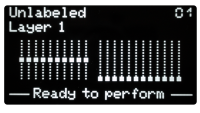
Default Screen / Overview Mode
Within the default screen you see the following content:
- Selected Profile
- Selected Layer
- Graphical Overview of all controls (10 knobs + 12 buttons in two sections)
- Additionally the data of the last triggered/modified or currently selected control.
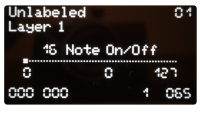
Deails Mode Screen
Within the Details screen you see the following content:
- Selected Profile
- Selected Layer
- Current Control Details:
- Actual value as number
- Actual value as graphical slider
- Minimum value
- Maximum value
- Knob/Button number
- Midi channel assigned
- Midi control assigned
- Midi value
Please note: Turning the “Menu” knob in both screens changes the currently shown control details be flipping to the next right or left control, depending on you turn direction.
Change Settings
By pressing the Menu button you reach the Settings Menu. Please turn the Menu control to flip between the following menu screens.
View Mode
This device supports the selection of two differnt view modes for normal use:
- Overview .. Shows all available controls on a single page but does only provide a view onto major attributes for a dedicated control.
- Details .. Shows only one control at one time but allows to see and check the whole configuration for that control. In the normal user screen turn the Menu button to flip between the controls itself.
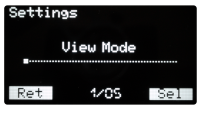
From the Settings screen press the Menu button to enter this menu or press the Profile button to leave the menu and to return to the main screen.
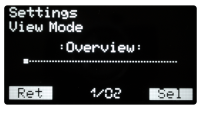
Press the Menu button to select the overview mode or press the Profile button to leave the menu and to return to the main screen without any change.
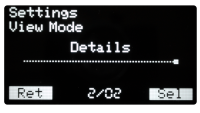
Press the Menu button to select the details mode or press the Profile button to leave the menu and to return to the main screen without any change.
Language
This device is prepared to display all user interface content on the display in different languages. Currently we do support languages:
- English (preselected)
- German
But more are to come. If you have the need to use a dedicated language we shall support, please give us a hint at support@synthhead.de. We will start to translate the UI content as soon as possible and provide the new language via Software Update.
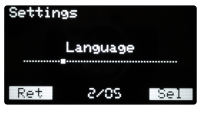
Language menu entry
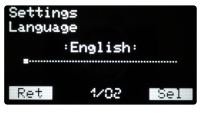
English language option
Note the current menu selection can be seen with the “:” (colon) sign before and after the menu option.
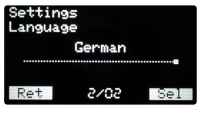
German language option
This language is currently unselected.
Demo Mode
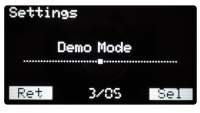
The demo mode can be used to see, if all control memories and internal functions are working fine. It loads an internally predefined programm into the runtime storage and starts triggering each customizable control knob and key in order to generate fast midi events on the midi bus. Normally you should be able to hear note triggers when starting a midi piano or similar program.
Restart Device
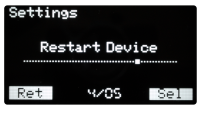
Selecting this function forces a restart of the device in case you may notice some unexpected behavior occuring. Your profile settings or preferences changes will be stored persistently on the device before going to restart.
Please note, a device restart can also be triggered by pressing and holding the “Menu” knob plus additionally pressing the “Profile” knob afterwards.
Remark: We are hardly working to develop, build and handover an error-free product to you our customer. Anyways we are a pretty young company and mistakes may happen rarely. So, we are kindly asking you to send us any annoyance via email, so that we may help you easily.
Wipe all data
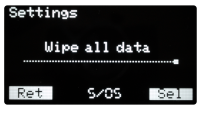
By selecting this menu item, all your personal profile data and preferences like user interface language or main screen view mode will be deleted.
This function shall be used, if you like to resell you device.
Select a Profile
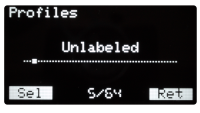
By pressing the Profile button you change to the Profiles Menu.
Here you can select one of your predefined profiles. By default each profile has got the same default configuration.
Note: Please have a look into the Configuration Manual for details of configuring profiles on a PC.